Find and Kill a Process on a Specific Port on Windows
November 30, 2025
TLDR
1.netstat -ano | findstr :<PortNumber>2.3.taskkill /PID <PID> /F
Find what is running on a port using Command Prompt
Open Command Prompt and run netstat -ano piped to findstr with your port number to find the process ID (PID) of whatever is using that port.
1.netstat -ano | findstr :<PortNumber>
Example
1.> netstat -ano | findstr :80002.3. TCP 127.0.0.1:8000 0.0.0.0:0 LISTENING 249224. TCP [::1]:8000 [::]:0 LISTENING 24922
The last column is the PID (Process ID). In this example, the PID is 24922.
Kill the process using Command Prompt
Use taskkill with the /PID flag and /F to forcefully terminate the process.
1.taskkill /PID <PID> /F
Example
1.> taskkill /PID 24922 /F2.3.SUCCESS: The process with PID 24922 has been terminated.
PowerShell Method
If you prefer PowerShell, you can use Get-NetTCPConnection to find the process and Stop-Process to kill it.
Find the process
1.Get-NetTCPConnection -LocalPort <PortNumber>
Example
1.> Get-NetTCPConnection -LocalPort 80002.3.LocalAddress LocalPort RemoteAddress RemotePort State OwningProcess4.------------ --------- ------------- ---------- ----- -------------5.127.0.0.1 8000 0.0.0.0 0 Listen 24922
The OwningProcess column shows the PID.
Kill the process
1.Stop-Process -Id <PID> -Force
Example
1.Stop-Process -Id 24922 -Force
One-liner to find and kill in PowerShell
You can combine both commands into a single line that finds and kills the process on a specific port:
1.Stop-Process -Id (Get-NetTCPConnection -LocalPort 8000).OwningProcess -Force
Popular Articles

I Can't Believe It's Not CSS: Styling Websites with SQL
Style websites using SQL instead of CSS. Database migrations for your styles. Because CSS is the wrong kind of declarative.
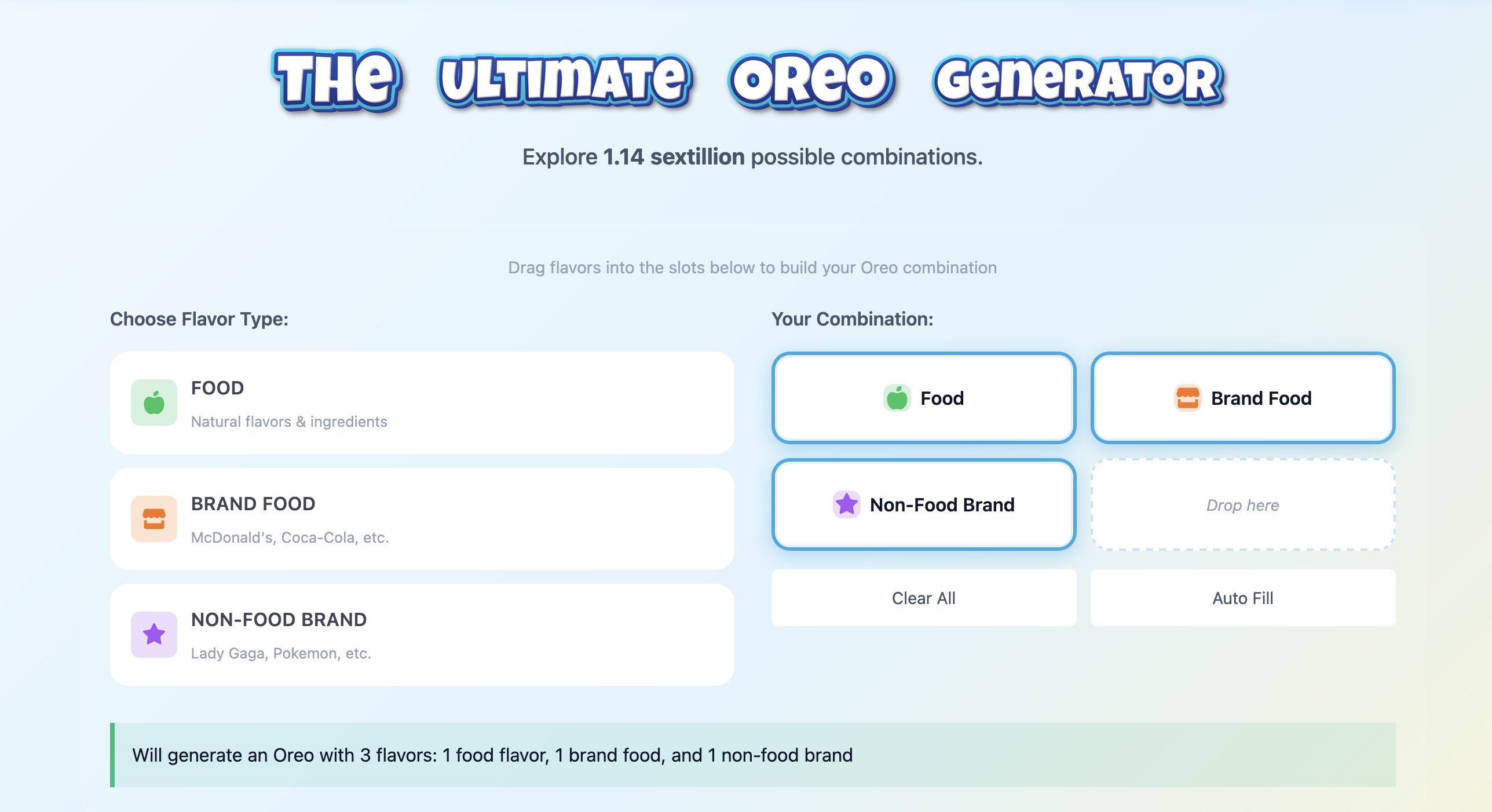
How I Built an Oreo Generator with 1.1 Sextillion Combinations
Building a web app that generates 1,140,145,285,551,550,231,122 possible Oreo flavor combinations using NestJS and TypeScript.
AI Model Names Are The Worst (tier list)
A comprehensive ranking of every major AI model name, from the elegant to the unhinged. Because apparently naming things is the hardest problem in AI.